── Attaching core tidyverse packages ─────── tidyverse 2.0.0 ──
✔ dplyr     1.1.4     ✔ readr     2.1.6
✔ forcats   1.0.1     ✔ stringr   1.6.0
✔ ggplot2   4.0.1     ✔ tibble    3.3.0
✔ lubridate 1.9.4     ✔ tidyr     1.3.2
✔ purrr     1.2.0
── Conflicts ───────────────────────── tidyverse_conflicts() ──
✖ dplyr::filter() masks stats::filter()
✖ dplyr::lag()    masks stats::lag()
ℹ Use the conflicted package to force all conflicts to become errors1 Introduction
Homework #1
Before Thursday, set up your workspace by downloading R, RStudio, and then complete the ⤓ R Install Check. Come to office hours on Wednesday at 12:30 over Zoom if you get stuck.


Setting up your workspace
Laptop
First thing first, you should decide which laptop you’d like to do your programming assignments on. It can be a Mac, Windows, or Linux machine: all are equally good. If you don’t have a laptop to bring to class, consider checking one out at the HUB or either campus library.
Download and Install R
Do this even if you installed R on your computer for a previous class (it will just update for you).
Go here: https://cran.r-project.org/ and follow the instructions to download R for your Linux, Windows, or Mac. You should download the latest release. If you are a Mac user, first check to see whether you have an Apple silicon mac or an older Intel mac (Top left apple symbol > About this mac > Chip will say M1, M2, … or Intel).
Finish the installation by opening the installer and agreeing to the software license agreement. Click through until you have confirmation it was successful.
Mac users: install xquartz: https://www.xquartz.org/.
Having issues with this step? Try doing your downloads at home instead of on campus. The campus wifi can sometimes be too slow, corrupting the files you’re trying to download.
Install RStudio
Now you’ve downloaded the programming language R! The next step is to download the IDE (Integrated Development Environment): the application you’ll open to work with R.
Go here https://posit.co/download/rstudio-desktop/ and scroll until you see 2. Install RStudio. Download RStudio desktop. Mac users will need to drag the RStudio icon into their applications folder.
Install the Tidyverse
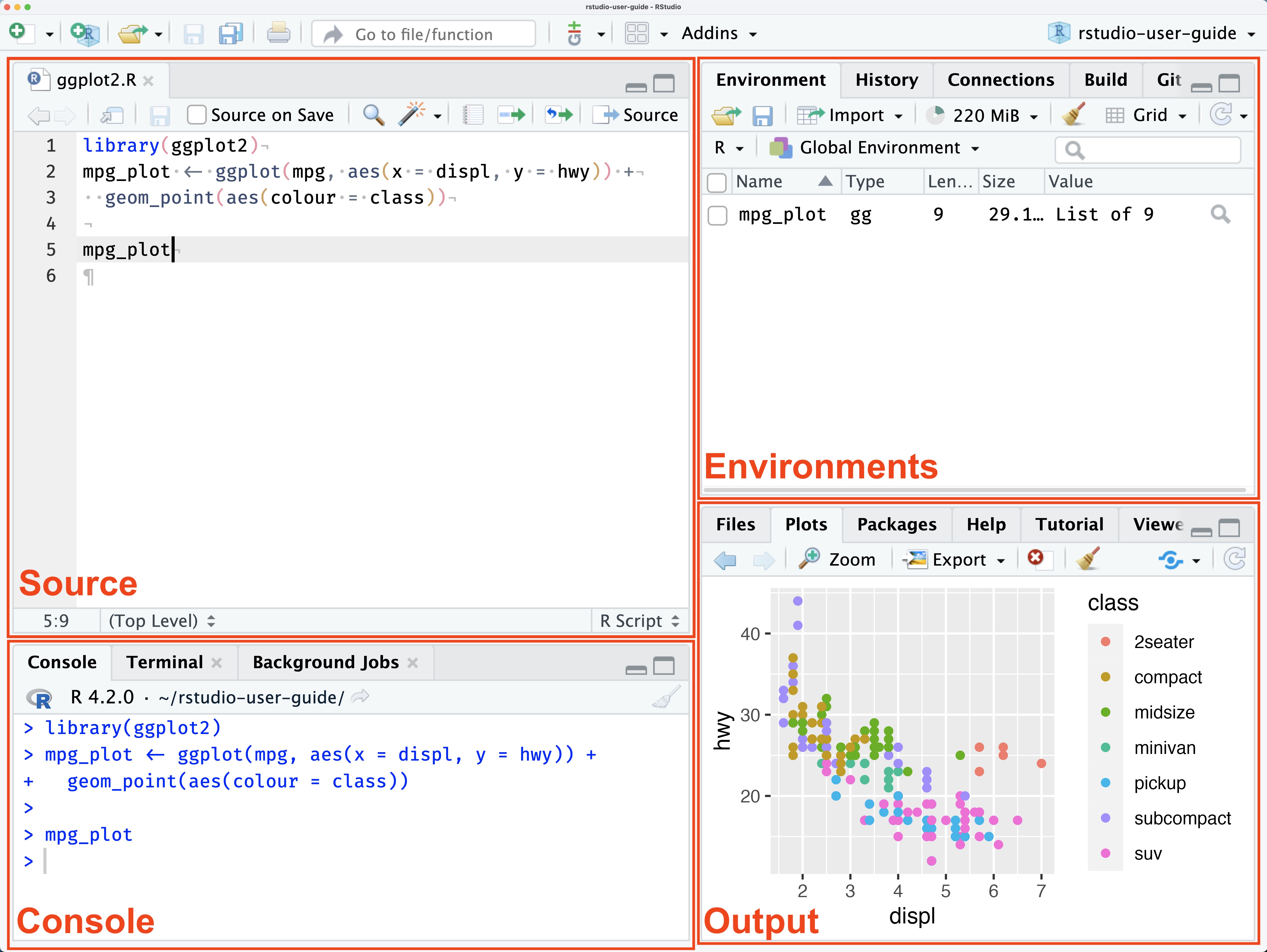
Open up RStudio. You should see 4 panes:
- Source: the document you’re working on. If you’re not working on any document right now, nothing will show up. To start a new R script, go to File > New File > R Script.
- Environments: shows variables you’ve defined in your global environment.
- Console: a scratch pad to run pieces of code and package installations.
- Output: files and rendered plots appear here.
Now locate your console and copy-paste this line of code, then hit enter to install the tidyverse package:
install.packages("tidyverse", dependencies = TRUE)
When it’s done downloading, you’ll see a carrot symbol in your console that indicates it’s ready for more code: >. Let’s check to make sure we’ve successfully downloaded the tidyverse. Run this in your console to attach the tidyverse to your current R session so you can use its functions:
library(tidyverse)
If everything went well, you should see this print:
Install gapminder
You’ll use this package a lot in the first few assignments for this class. Run this in your console:
install.packages("gapminder")
library(gapminder)
Install a few packages we’ll use for plots
install.packages("gganimate", dependencies = TRUE)
install.packages("hexbin")
install.packages("devtools")
Install qelp
qelp (quick help) is an alternative set of beginner friendly help docs I created (with contributions from previous students) for commonly used functions in R and the tidyverse. Once you have the package installed, you can access the help docs from inside RStudio.
install.packages("remotes")
remotes::install_github("cobriant/qelp")
Now run:
?qelp::install.packagesIf everything went right, the help docs I wrote on the function install.packages should pop up in the lower right hand pane. Whenever you want to read the qelp docs on a function, you type ?, qelp, two colons :: which say “I want the help docs on this function which is from the package qelp”, and then the name of the function you’re wondering about.
Submit the R Install Check on Canvas
Now you’ve downloaded R, RStudio, the tidyverse, gapminder, and qelp. To check to make sure you’ve completed all the steps, download this R script: ⤓ R Install Check. Open the R script in RStudio and fill out the questions. When you’re done, compile the document to html (Ctrl/Cmd Shift K) and upload the html document to Canvas under HW #1: R Install Check. That’s all you need to do by Thursday.